Executive Summary
I built a minimal Active Directory Domain Services (AD DS) lab in Oracle VirtualBox to demonstrate end-to-end domain provisioning and client domain-join. I configured a Windows Server with a static IPv4 address (192.x.x.10/24), set its hostname to DC1, installed AD DS and DNS via Server Manager, and promoted it to a domain controller for a new forest and domain, adlab.com. I validated the deployment by inspecting AD DS role presence in Server Manager and Active Directory Users and Computers, observing computer objects (PC1, PC2) in the domain, and signing in to the ADLAB domain on the client. I also verified network settings on DC1 and performed basic name resolution checks. The lab achieves centralized authentication and directory services on a private virtual network, with minor unresolved observations highlighted for follow-up.
Objectives
My objective was to set up a Windows domain and join a client to it. Success criteria were: a Windows Server configured as an AD DS domain controller with DNS for adlab.com; a Windows client on the same private network appearing in the domain and able to present an AD domain sign-in; and administrative visibility of domain objects using standard Microsoft MMC tools.
Scope
I configured a Windows Server VM as an AD DS domain controller with DNS, static IP addressing, server naming, and domain creation. I configured a Windows client VM on the same private virtual network and joined it to the new domain to validate connectivity and domain authentication paths. The work covers basic deployment and validation of an AD DS environment; advanced services and hardening were out of scope.
Requirements
The project record did not state explicit prerequisites or constraints.
Environment
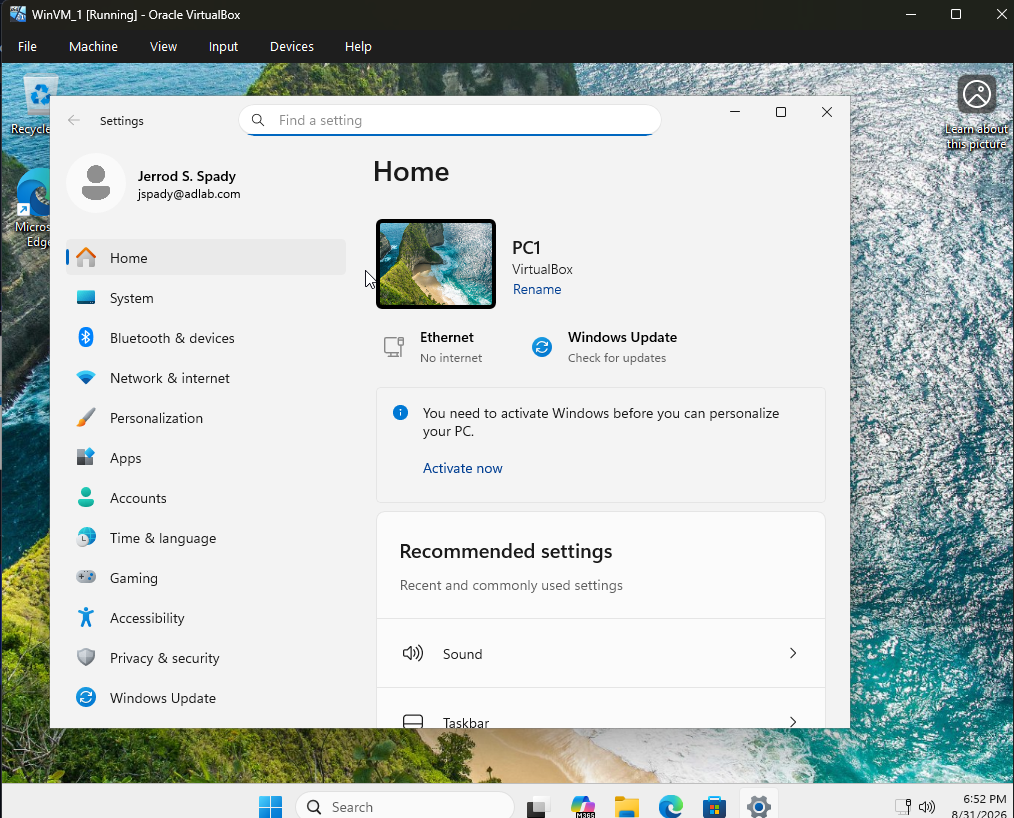
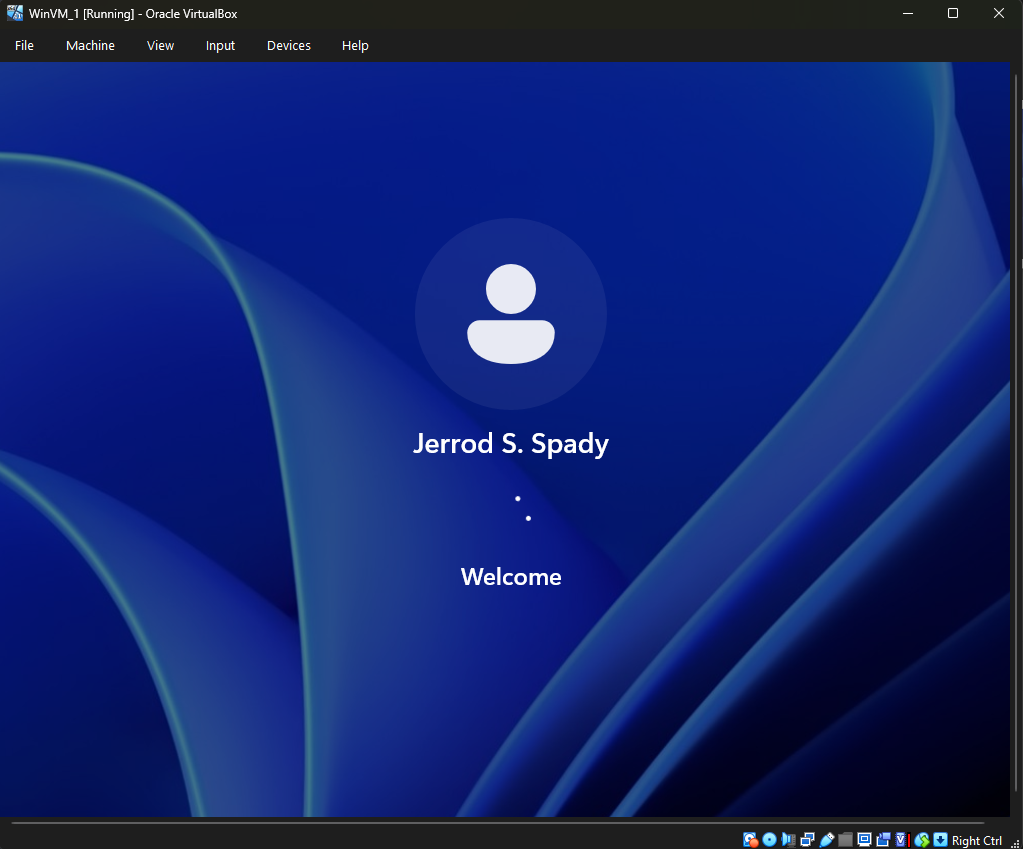
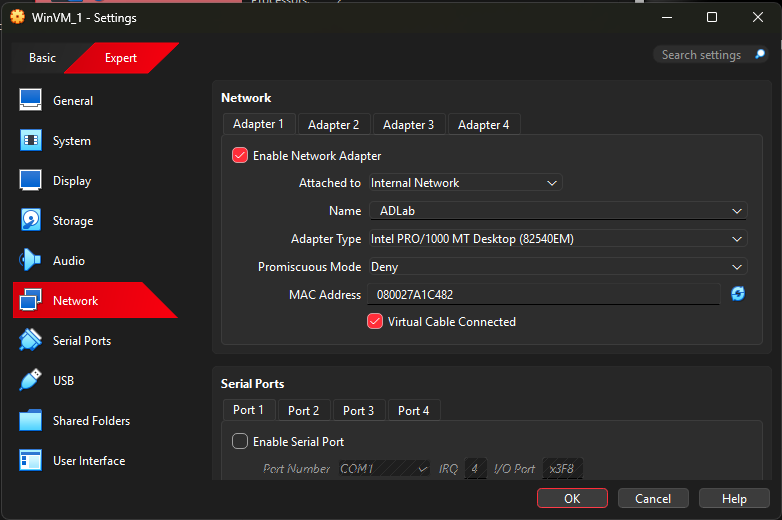
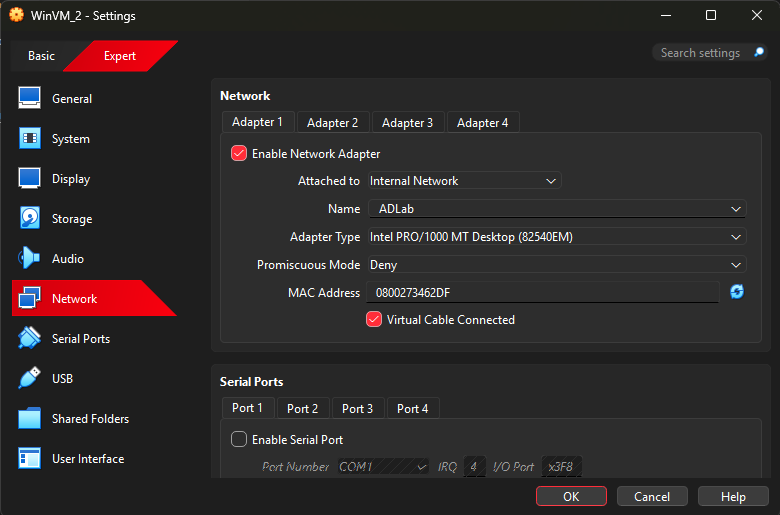
I ran the lab in Oracle VirtualBox using a private virtual network. The Windows Server host (DC1) was configured with IPv4 address 192.x.x.10/24 and default gateway 192.x.x.1, and shows Primary DNS suffix adlab.com. Server Manager identifies the machine as DC1 joined to adlab.com, and the OS watermark indicates Windows Server 2025 Standard (build 26100). A Windows client VM (PC1) resided on the same network and presented AD domain sign-in for ADLAB; the client’s Settings view shows the device name PC1 and an account in the adlab.com domain.
Architecture
I implemented a single-domain AD architecture. One Windows Server VM provides both AD DS and DNS for adlab.com and uses local DNS resolution on the domain controller. One Windows client VM resides on the same private network and uses the domain controller for name resolution and domain authentication to access the ADLAB domain.
Methodology
I sequenced the build by first assigning a static IP configuration and applying a role-appropriate hostname, then installing AD DS and DNS via Server Manager. I used the AD DS configuration workflow to create a new forest and domain (adlab.com) and promote the server. I verified role installation and domain creation by inspecting Server Manager tiles and Tools, and by reviewing domain objects in Active Directory Users and Computers. I confirmed client integration by observing the PC1 computer object and the client’s ADLAB domain sign-in prompt; I further inspected ipconfig output on DC1 and executed an nslookup for adlab.com to sanity-check DNS resolution.
Implementation
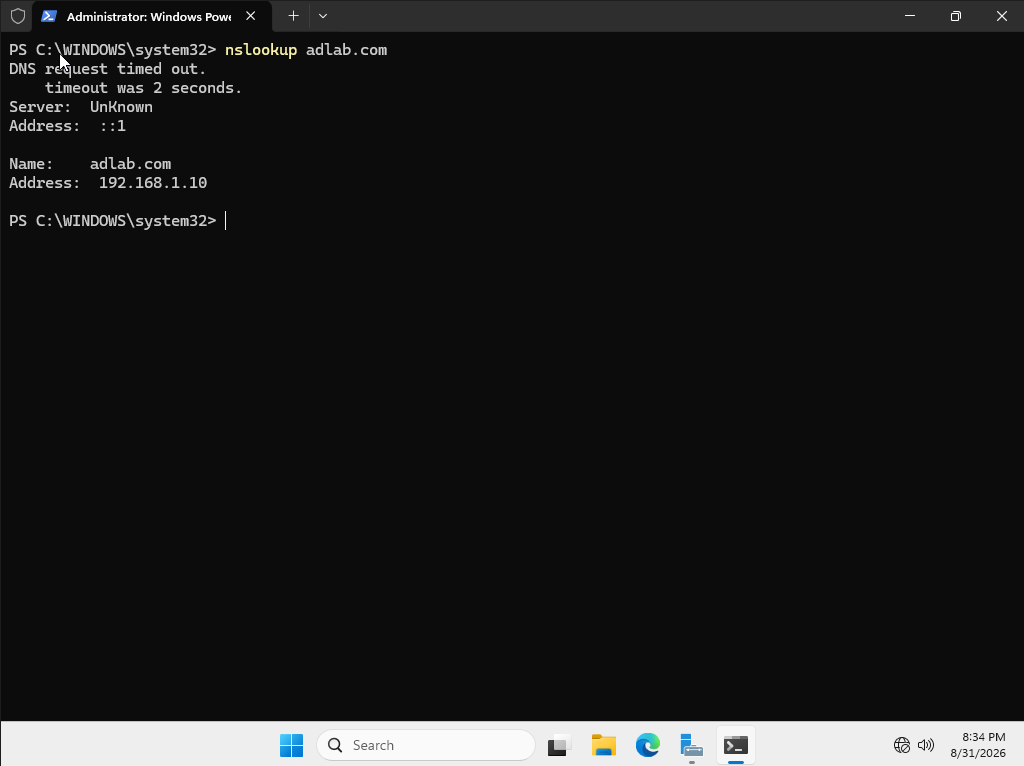
I used the Server Manager Add Roles and Features wizard to install AD DS and DNS. Before promotion, I configured the Ethernet adapter on the server with a static IPv4 address and gateway and set the computer name to DC1. I then launched the “Promote this server to a domain controller” workflow, selected “Add a new forest,” set the domain name to adlab.com, and supplied the DSRM password. After promotion, I validated the presence of AD DS and DNS in Server Manager, opened Active Directory Users and Computers to confirm domain objects (including PC1 and PC2 in Computers), and observed domain sign-in prompts for ADLAB on the client. I captured ipconfig /all from DC1 to verify addressing and suffix configuration and ran nslookup adlab.com to confirm name resolution returned 192.x.x.10 despite an initial timeout over ::1. Event views showed AD-related warnings to be addressed later.
Step-by-Step Process
The following steps summarize the ordered build and verification activities and why each mattered for a functional AD DS domain with DNS-backed name resolution.
1. Install ADDS and DNS
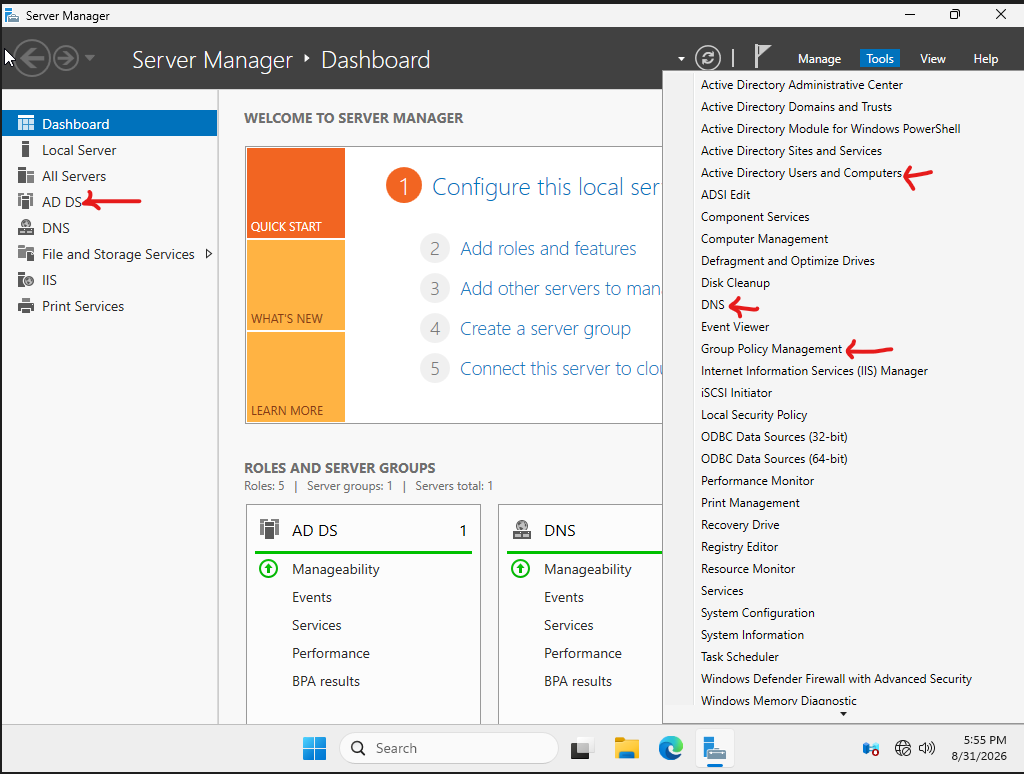
On Server Manager, I clicked on Add roles and features. Chose DNS and Active Directory Domain Servers then install them
The Active Directory Domain Services (AD DS) and Domain Name System (DNS) server roles were installed on the Windows Server.
How it was done: Installation was performed via Server Manager using the Add Roles and Features wizard with DNS and Active Directory Domain Services selected and the installation executed to completion.
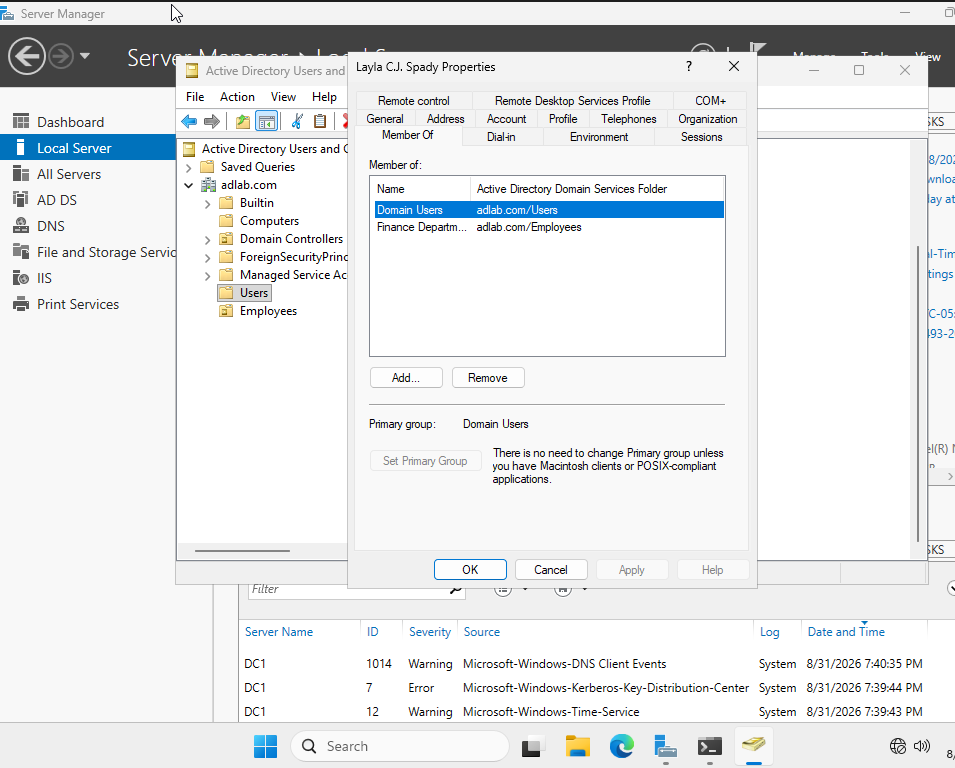
Actual result: Server Manager's Dashboard displays AD DS and DNS role tiles and the Tools menu lists Active Directory administration utilities, while the Active Directory Users and Computers view shows the adlab.com domain and a host named DC1, which together indicate the AD DS and DNS roles are present on the server.
2. Add Static IP, remove DHCP
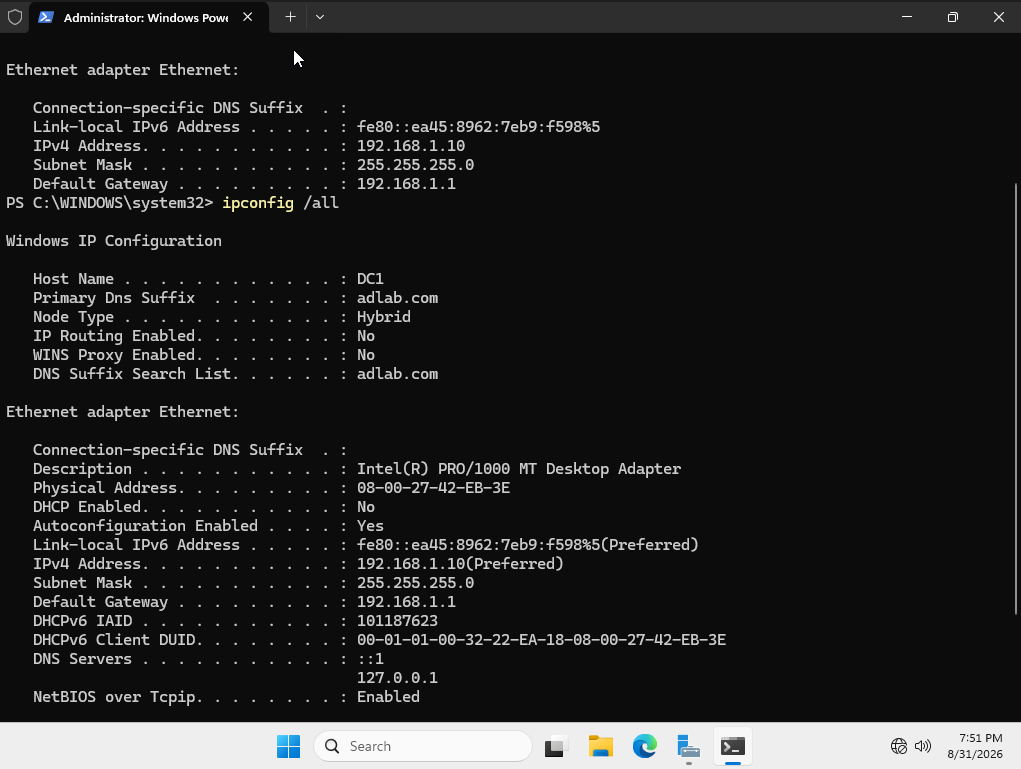
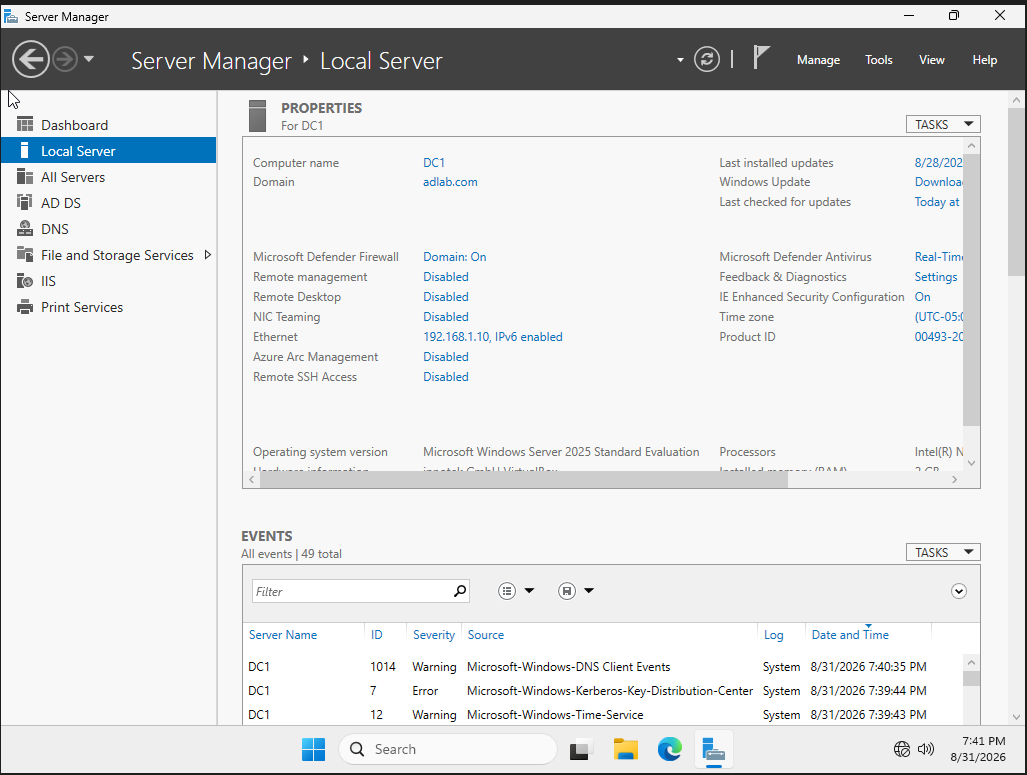
To add a static IP Address and remove DHCP, On Server Manager, I clicked on Local Server then clicked the link next to Ethernet about IPv4. I, then, clicked on Network Connection, right-click on Properties and clicked on Internet Protocol v4 ...TCP/IPv4, clicked on Properties then add IP, Subnet Mask, Default Gateway and Preferred DNS.
The server's Ethernet interface was assigned IPv4 address 192.x.x.10 with subnet mask 255.x.x.0 and default gateway 192.x.x.1, and DHCP was disabled.
How it was done: The Server Manager GUI was used to open the Ethernet adapter properties and the Internet Protocol Version 4 (TCP/IPv4) settings, where the static IP, subnet mask, default gateway, and preferred DNS were entered.
Why it was done: A static IPv4 address and local DNS resolution were configured to provide a stable network identity and reliable name resolution, both of which are prerequisites for Active Directory Domain Services operation.
3. Change Computer Name
On Server Manager, I went to Local Server and clicked on the Computer/Server Name (in Properties). In System Properties, I clicked on Change...then changed the name into DC1
The computer name was changed to DC1 via System Properties (Change...).
Why it was done: Assigning a role-descriptive hostname (e.g., 'DC1') prior to or during Active Directory deployment aids administrative identification and aligns with common naming practices for domain controllers.
Actual result: System artifacts show the host name as 'DC1', the Primary DNS suffix as 'adlab.com', and an IPv4 address of 192.x.x.10.
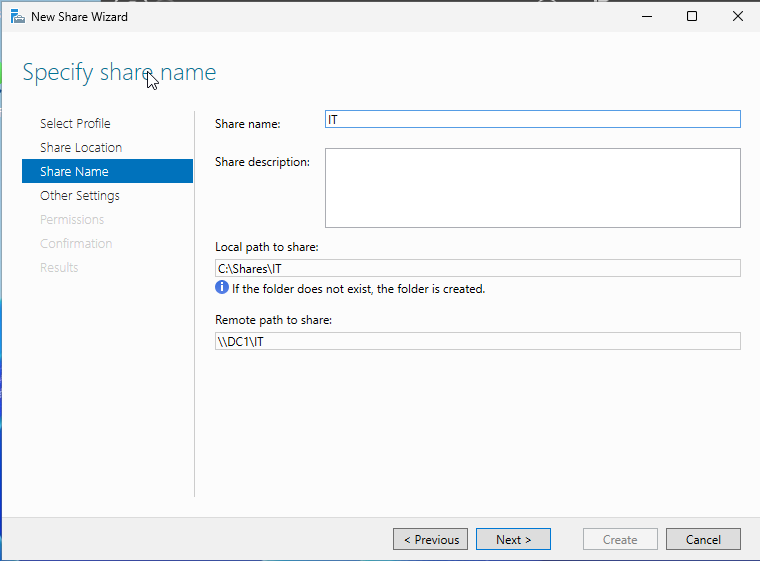
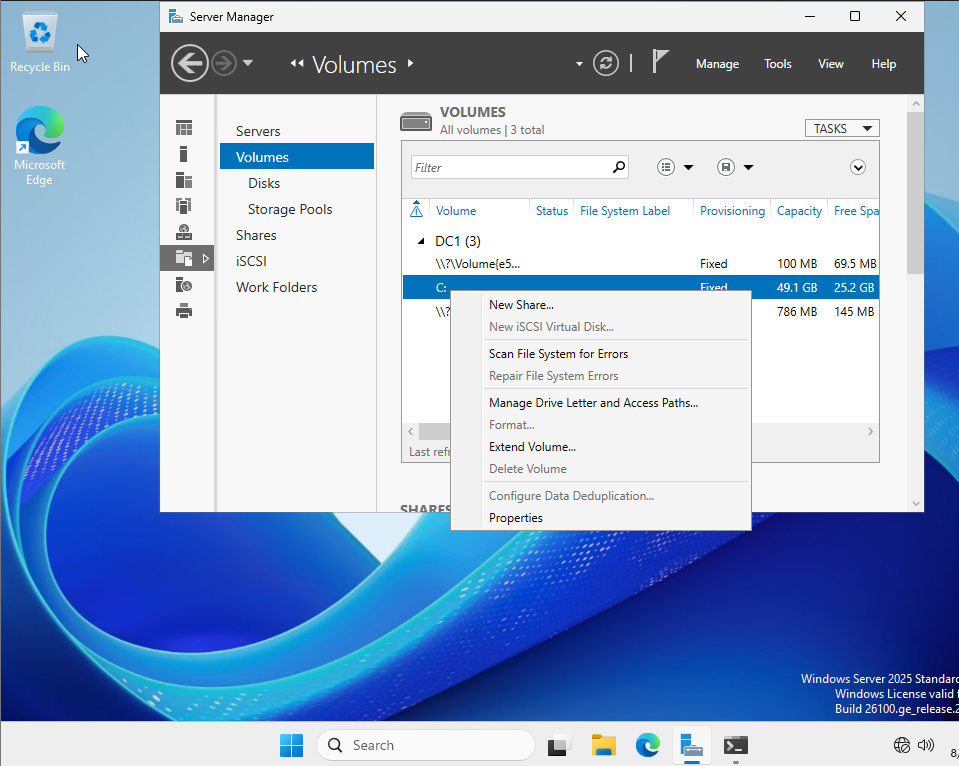
4. Promote to Domain Controller and Creating a new domain
On Server Manager, I clicked the notification flag, clicked on promote this server to Domain Controller. In Active Directory Domain Services configuration, I created a new forest by clicking on Add a new forest. Typed in the Domain name "adlab.com" in Domain name field clicked next until I am asked to type in and confirm a password (DSRM: Directory Service Restore Mode) then install
The server was promoted to a Domain Controller and a new Active Directory forest and domain named "adlab.com" were created using the Active Directory Domain Services configuration wizard.
How it was done: The Server Manager notification flag was used to launch the 'Promote this server to a domain controller' workflow, the 'Add a new forest' option was selected, 'adlab.com' was entered as the domain name, and a Directory Services Restore Mode (DSRM) password was provided before installation.
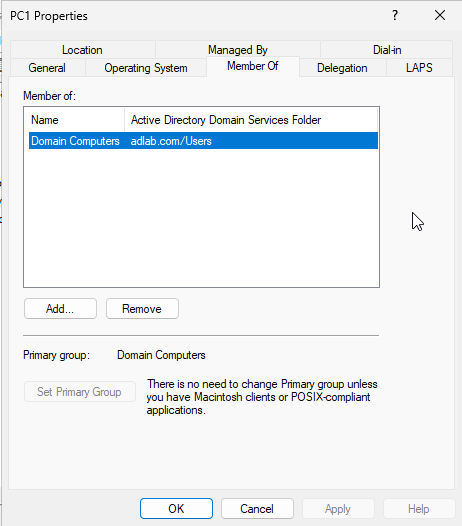
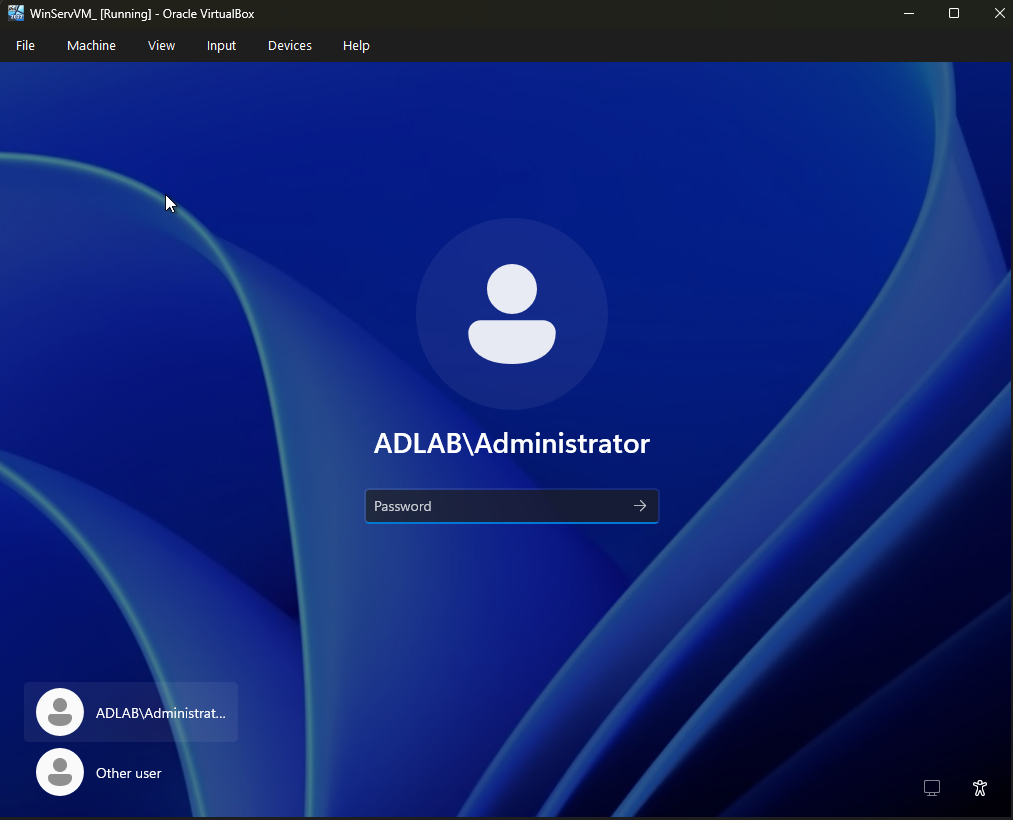
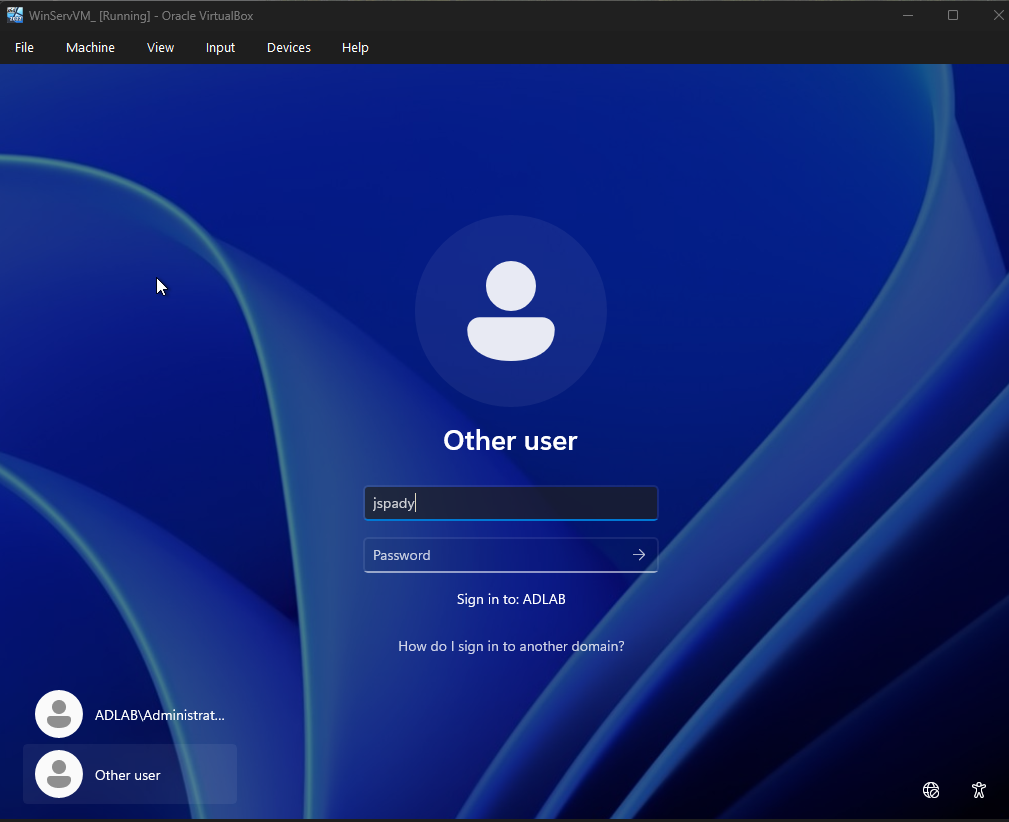
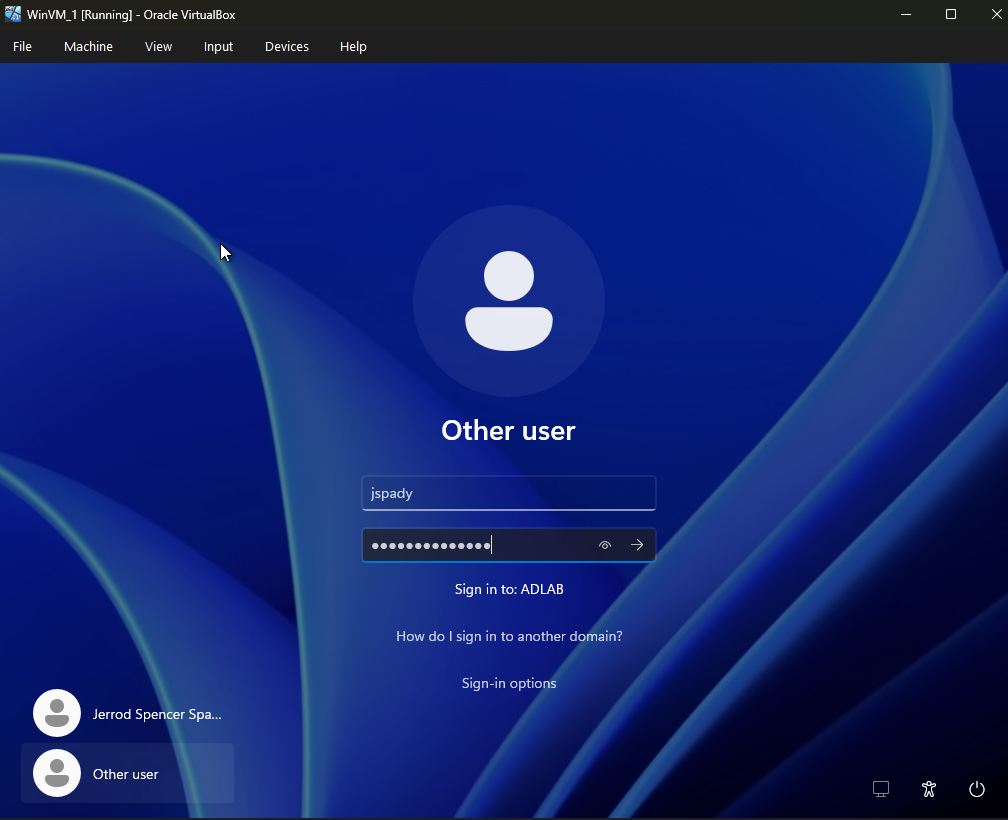
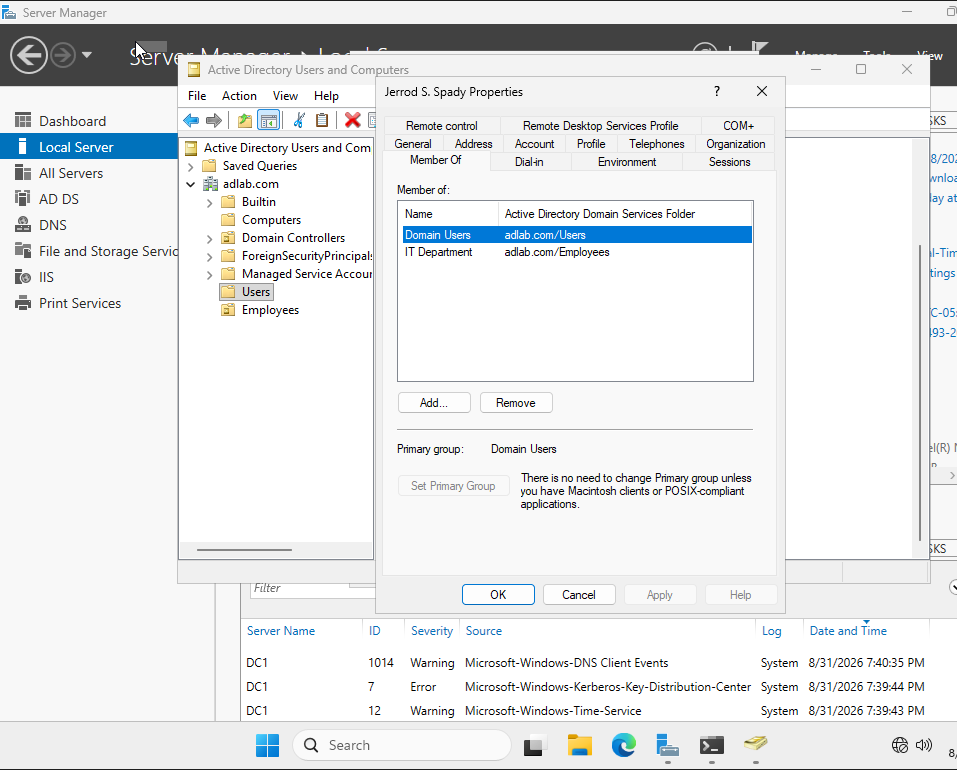
Actual result: Active Directory objects for the adlab.com domain are present, including default containers and computer objects (PC1, PC2), and domain sign-in prompts for the ADLAB domain are visible, indicating successful promotion and domain creation.
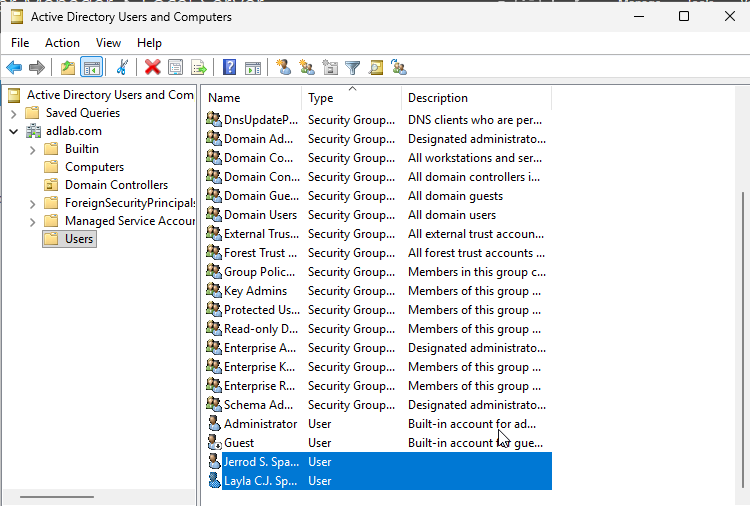
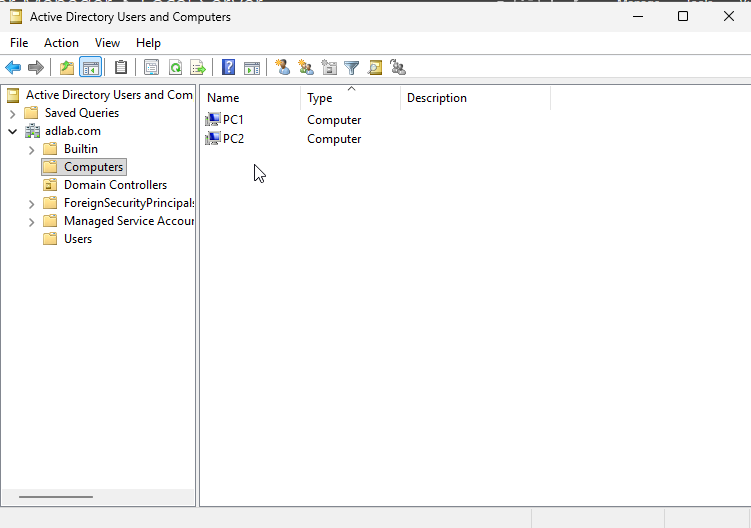
Lessons Learned
Setting a static IP and ensuring the domain controller resolves names locally are non-negotiable prerequisites for AD DS stability. Validating with MMC tools (ADUC) and observing domain sign-in on the client provided fast, reliable checks that the core control plane was in place. The nslookup timeout over ::1 and event entries for DNS Client and Time Service emphasize that DNS and time coherence directly affect AD reliability and should be verified immediately after promotion to preempt Kerberos-related issues.
Recommendations
Conclusion
I deployed a single-domain AD DS environment on VirtualBox by configuring a Windows Server (DC1) with static IP, installing AD DS and DNS, and promoting it to the adlab.com domain. I observed the domain and its objects in Active Directory Users and Computers, saw PC1 and PC2 listed, and used the client’s ADLAB sign-in to exercise domain authentication on the lab network. Basic DNS resolution for adlab.com returned the domain controller’s address, with minor IPv6-related lookup behavior and timing warnings noted for follow-up. The lab demonstrates the core workflow for establishing centralized authentication and directory services on a private virtual network.
Appendix
The appendix compiles the full evidence set (screenshots and console excerpts) that substantiates the configuration, observations, and validations cited above.
Evidence catalogue
| Title | Kind | Review state | Appears in |
|---|---|---|---|
| ADDS_1 | screenshot | ai-analyzed | step (supports) |
| ADDS_2 | screenshot | ai-analyzed | step (supports) |
| ADDS_4 | screenshot | ai-analyzed | step (supports) |
| ADDS_3 | screenshot | ai-analyzed | step (supports) |
| ADDS_6 | screenshot | ai-analyzed | step (validation) |
| ADDS_5 | screenshot | ai-analyzed | step (validation) |
| ADDS_9 | screenshot | ai-analyzed | step (supports) |
| ADDS_8 | screenshot | ai-analyzed | appendix only |
| ADDS_7 | screenshot | ai-analyzed | step (validation) |
| ADDS_12 | screenshot | ai-analyzed | step (investigation) |
| ADDS_11 | screenshot | ai-analyzed | step (supports), step (supports), step (supports) |
| ADDS_10 | screenshot | ai-analyzed | step (validation), step (validation), step (validation) |
| ADDS_18 | screenshot | ai-analyzed | step (supports) |
| ADDS_17 | screenshot | ai-analyzed | appendix only |
| ADDS_16 | screenshot | ai-analyzed | step (supports) |
| ADDS_15 | screenshot | ai-analyzed | step (supports) |
| ADDS_14 | screenshot | ai-analyzed | step (validation) |
| ADDS_13 | screenshot | ai-analyzed | step (validation) |
| ADDS_21 | screenshot | ai-analyzed | appendix only |
| ADDS_20 | screenshot | ai-analyzed | appendix only |
| ADDS_19 | screenshot | ai-analyzed | appendix only |
Additional evidence
The following 5 items are not yet attached to a specific step or problem.
Extracted text
Extract — ADDS_1
Server Manager  >  Dashboard

WELCOME TO SERVER MANAGER

QUICK START
1  Configure this local ser
2  Add roles and features
3  Add other servers to man
4  Create a server group
5  Connect this server to clo

WHAT'S NEW

LEARN MORE

ROLES AND SERVER GROUPS
Roles: 5 | Server groups: 1 | Servers total: 1

AD DS        1
Manageability
Events
Services
Performance
BPA results

DNS
Manageability
Events
Services
Performance
BPA results

(Left navigation)
Dashboard
Local Server
All Servers
AD DS
DNS
File and Storage Services
IIS
Print Services

(Top-right Tools menu)
Active Directory Administrative Center
Active Directory Domains and Trusts
Active Directory Module for Windows PowerShell
Active Directory Sites and Services
Active Directory Users and Computers
ADSI Edit
Component Services
Computer Management
Defragment and Optimize Drives
Disk Cleanup
DNS
Event Viewer
Group Policy Management
Intern…
Extract — ADDS_2
Active Directory Users and Computers
File  Action  View  Help

Active Directory Users and Com
  Saved Queries
  adlab.com
    Builtin
    Computers
    Domain Controllers
    ForeignSecurityPrincipals
    Managed Service Accou...
    Users

Name                      Type                   Description
DnsUpdateP...             Security Group...      DNS clients who are per...
Domain Ad...              Security Group...      Designated administrato...
Domain Co...              Security Group...      All workstations and ser...
Domain Con...             Security Group...      All domain controllers i...
Domain Gue...             Security Group...      All domain guests
Domain Users              Security Group...      All domain users
External Trus...          Security Group...      All external trust accoun...
Forest Trust...           Security Group...      All forest trust accounts i...…
Extract — ADDS_4
PC1 Properties

General    Operating System    Member Of    Managed By    Dial-in    Delegation    LAPS

Member of:

Name                                    Active Directory Domain Services Folder

Domain Computers    adlab.com/Users

Add...    Remove

Primary group:    Domain Computers

Set Primary Group

There is no need to change Primary group unless you have Macintosh clients or POSIX-compliant applications.

OK    Cancel    Apply    Help
Extract — ADDS_3
Active Directory Users and Computers

File  Action  View  Help

Saved Queries
adlab.com
Builtin
Computers
Domain Controllers
ForeignSecurityPrincipals
Managed Service Accounts
Users

Name	Type	Description
PC1	Computer
PC2	Computer
Extract — ADDS_6
WinServVM_ [Running] - Oracle VirtualBox
File  Machine  View  Input  Devices  Help

Other user

jspady

Password

Sign in to: ADLAB

How do I sign in to another domain?

ADLAB\Administrat...
Other user
Extract — ADDS_5
WinServVM_ [Running] - Oracle VirtualBox
File  Machine  View  Input  Devices  Help

ADLAB\Administrator

Password  ->

ADLAB\Administrat...
Other user
Extract — ADDS_9
WinVM_1 [Running] - Oracle VirtualBox
File  Machine  View  Input  Devices  Help

Settings
<back arrow>  Find a setting

Jerrod S. Spady
[redacted]

Home

[PC image]
PC1
VirtualBox
Rename

Ethernet
No internet

Windows Update
Check for updates

(i) You need to activate Windows before you can personalize your PC.
Activate now

Recommended settings
Recent and commonly used settings

Sound

[Taskbar area with Search]

Recycle Bin          Microsoft Edge

Learn about this picture

Search    [icons]
6:52 PM
8/31/20
Extract — ADDS_8
WinVM_1 [Running] - Oracle VirtualBox
File  Machine  View  Input  Devices  Help

Jerrod S. Spady
.
.
Welcome

Right Ctrl
Extract — ADDS_7
WinVM_1 [Running] - Oracle VirtualBox
File Machine View Input Devices Help

Other user

jspady
•••••••••••••

Sign in to: ADLAB

How do I sign in to another domain?

Sign-in options

Jerrod Spencer Spa...
Other user
Extract — ADDS_12
Administrator: Windows Power

PS C:\WINDOWS\system32> nslookup adlab.com
DNS request timed out.
    timeout was 2 seconds.
Server:  UnKnown
Address:  ::1

Name:    adlab.com
Address:  192.x.x.10

PS C:\WINDOWS\system32>

Search
8:34 PM
8/31/2026
Extract — ADDS_11
Administrator: Windows Pow

Ethernet adapter Ethernet:

    Connection-specific DNS Suffix  . :
    Link-local IPv6 Address . . . . . : fe80::ea45:8962:7eb9:f598%5
    IPv4 Address. . . . . . . . . . . : 192.x.x.10
    Subnet Mask . . . . . . . . . . . : 255.x.x.0
    Default Gateway . . . . . . . . . : 192.x.x.1

PS C:\WINDOWS\system32> ipconfig /all

Windows IP Configuration

    Host Name . . . . . . . . . . . . : DC1
    Primary Dns Suffix . . . . . . . . : adlab.com
    Node Type . . . . . . . . . . . . : Hybrid
    IP Routing Enabled. . . . . . . . : No
    WINS Proxy Enabled. . . . . . . . : No
    DNS Suffix Search List. . . . . . : adlab.com

Ethernet adapter Ethernet:

    Connection-specific DNS Suffix  . :
    Description . . . . . . . . . . . : Intel(R) PRO/1000 MT Desktop Adapter
    Physical Address. . . . . . . . . : 08-00-27-42-EB-3E
    DHCP Enabled. . . . . .…
Extract — ADDS_10
Server Manager › Local Server

Dashboard
Local Server
All Servers
AD DS
DNS
File and Storage Services
IIS
Print Services

PROPERTIES
For DC1

Computer name                       DC1
Domain                              adlab.com

Microsoft Defender Firewall         Domain: On
Remote management                   Disabled
Remote Desktop                      Disabled
NIC Teaming                         Disabled
Ethernet                             192.x.x.10, IPv6 enabled
Azure Arc Management                Disabled
Remote SSH Access                   Disabled

Last installed updates               8/28/2026
Windows Update                       Download...
Last checked for updates             Today at ...

Microsoft Defender Antivirus         Real-Time ...
Feedback & Diagnostics               Settings
IE Enhanced Security Configuration   On
Time zone                            (UTC-05:00 .…
Extract — ADDS_18
New Share Wizard

Specify share name

Select Profile
Share Location
Share Name
Other Settings
Permissions
Confirmation
Results

Share name:    IT

Share description:

Local path to share:
C:\Shares\IT
If the folder does not exist, the folder is created.

Remote path to share:
\\DC1\IT

< Previous    Next >    Create    Cancel
Extract — ADDS_17
New Share Wizard

Select the profile for this share

Select Profile
Share Location
Share Name
Other Settings
Permissions
Confirmation
Results

File share profile:
SMB Share - Quick
SMB Share - Advanced
SMB Share - Applications
NFS Share - Quick
NFS Share - Advanced

Description:
This basic profile represents the fastest way to create an
SMB file share, typically used to share files with
Windows-based computers.…
Extract — ADDS_16
Server Manager

<< Volumes >>

Servers
Volumes
Disks
Storage Pools
Shares
iSCSI
Work Folders

VOLUMES
All volumes | 3 total

Filter

Volume    Status    File System Label    Provisioning    Capacity    Free Spa

DC1 (3)
\\?\Volume{e5...
Fixed    100 MB    69.5 MB

C:
\\?\...
Fixed    49.1 GB    25.2 GB

\\?\...
Fixed    786 MB    145 MB

[TASKS]

(context menu)
New Share...
New iSCSI Virtual Disk...
Scan File System for Errors
Repair File System Errors
Manage Drive Letter and Access Paths...
Format...
Extend Volume...
Delete Volume
Configure Data Deduplication...
Properties

(Desktop)
Recycle Bin
Microsoft Edge

(Bottom-right watermark)
Windows Server 2025 Standard
Windows License valid ...
Build 26100.ge_release...
Extract — ADDS_15
Advanced Security Settings for Finance

Name:    C:\Shares\Finance
Owner:   Administrators (ADLAB\Administrators)    Change

Permissions    Share    Auditing    Effective Access

For additional information, double-click a permission entry. To modify a permission entry, select the entry and click Edit (if available).

Permission entries:

Principal                                   Type   Access        Inherited from   Applies to
Administrators (ADLAB\Admini...)           Allow  Full control  None             This folder only
Finance Department (ADLAB\Fi...)           Allow  Modify        None             This folder, subfolders and files

Add   Remove   Edit

Enable inheritance

[ ] Replace all child object permission entries with inheritable permission entries from this object

OK   Cancel   Apply


New Share Wizard
Specify permissions to control access

Steps:
Select Profile
Share Loc…
Extract — ADDS_14
Server Manager

Dashboard
Local Server
All Servers
AD DS
DNS
File and Storage Servic
IIS
Print Services

Active Directory Users and Com
  Saved Queries
  adlab.com
    Builtin
    Computers
    Domain Controllers
    ForeignSecurityPrincipals
    Managed Service Accou
    Users
    Employees

Jerrod S. Spady Properties

General   Address   Account   Profile   Telephones   Organization
Member Of   Dial-in   Environment   Sessions

Member of:

Name                         Active Directory Domain Services Folder
Domain Users                 adlab.com/Users
IT Department                adlab.com/Employees

[Add...]  [Remove]

Primary group:   Domain Users
[Set Primary Group]
There is no need to change Primary group unless
you have Macintosh clients or POSIX-compliant
applications.

[OK]  [Cancel]  [Apply]  [Help]


Server Name   ID    Severity   Source…
Extract — ADDS_13
Server Manager

Dashboard
Local Server
All Servers
AD DS
DNS
File and Storage Services
IIS
Print Services

Active Directory Users and Co...
File  Action  View  Help

Saved Queries
adlab.com
  Builtin
  Computers
  Domain Controllers
  ForeignSecurityPrin...
  Managed Service Ac...
  Users
  Employees

Layla C.J. Spady Properties

Remote control  Remote Desktop Services Profile  COM+
General  Address  Account  Profile  Telephones  Organization
Member Of  Dial-in  Environment  Sessions

Member of:
Name                                  Active Directory Domain Services Folder
Domain Users                          adlab.com/Users
Finance Departm...                    adlab.com/Employees

Add...    Remove

Primary group:    Domain Users
[Set Primary Group]
There is no need to change Primary group unless
you have Macintosh clients or POSIX-compliant
applications.

OK    Cancel    Apply    Help…
Extract — ADDS_21
WinVM_1 - Settings

Basic  Expert

General
System
Display
Storage
Audio
Network
Serial Ports
USB
Shared Folders
User Interface

Network

Adapter 1  Adapter 2  Adapter 3  Adapter 4

 Enable Network Adapter

Attached to  Internal Network

Name  ADLab

Adapter Type  Intel PRO/1000 MT Desktop (82540EM)

Promiscuous Mode  Deny

MAC Address  080027A1C482

 Virtual Cable Connected

Serial Ports

Port 1  Port 2  Port 3  Port 4

 Enable Serial Port

Port Number  COM1  IRQ 4  I/O Port  0x3F8

OK  Cancel  Help

Search settings
Extract — ADDS_20
WinVM_2 - Settings

Basic   Expert

General
System
Display
Storage
Audio

Network

Serial Ports
USB
Shared Folders
User Interface

Search settings

Network

Adapter 1   Adapter 2   Adapter 3   Adapter 4

[✔] Enable Network Adapter
Attached to   Internal Network
Name           ADLab
Adapter Type   Intel PRO/1000 MT Desktop (82540EM)
Promiscuous Mode   Deny
MAC Address   0800273462DF   (refresh icon)
[✔] Virtual Cable Connected

Serial Ports
Port 1   Port 2   Port 3   Port 4
[ ] Enable Serial Port
Port Number    COM1    IRQ   4    I/O Port   3F8

OK   Cancel   Help
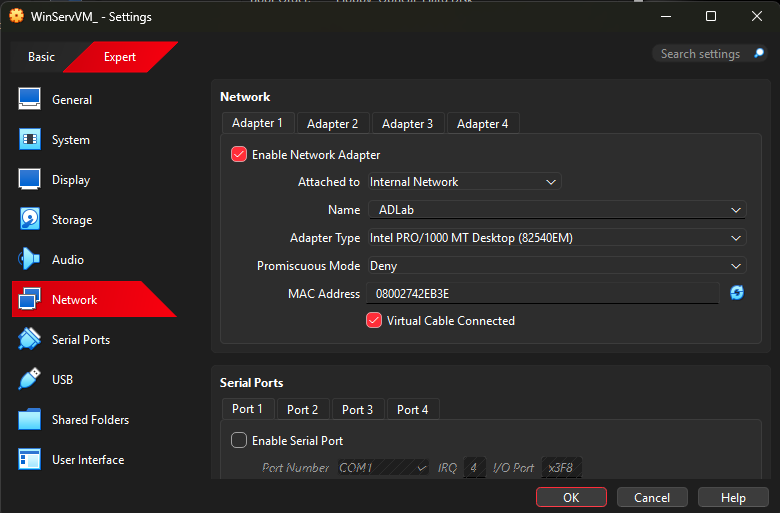
Extract — ADDS_19
WinServVM_ - Settings

Basic   Expert

General
System
Display
Storage
Audio
Network
Serial Ports
USB
Shared Folders
User Interface

Network

Adapter 1   Adapter 2   Adapter 3   Adapter 4

[checked] Enable Network Adapter

Attached to    Internal Network
Name    ADLab
Adapter Type    Intel PRO/1000 MT Desktop (82540EM)
Promiscuous Mode    Deny
MAC Address    08002742EB3E
[checked] Virtual Cable Connected

Serial Ports

Port 1   Port 2   Port 3   Port 4

[ ] Enable Serial Port

Port Number   COM1   IRQ   4   I/O Port   x3F8

OK   Cancel   Help

Search settings